Your PC, now in Motion

PortalVR Motion brings Wii-style gaming to PC, bringing natural motion controls to thousands of games and creative apps on SteamVR — using the phone already in your pocket as a fully tracked 6DoF controller. Joy-Cons and VR controllers work too.

Watch how to play 2-minute setup videos
Your phone is now a motion controller Android & iOS Joy-Cons & VR controllers too Works with SteamVR
VRChat
VRChat — desktop · no headset No headset. No base stations. Just you and your phone.

How it Works

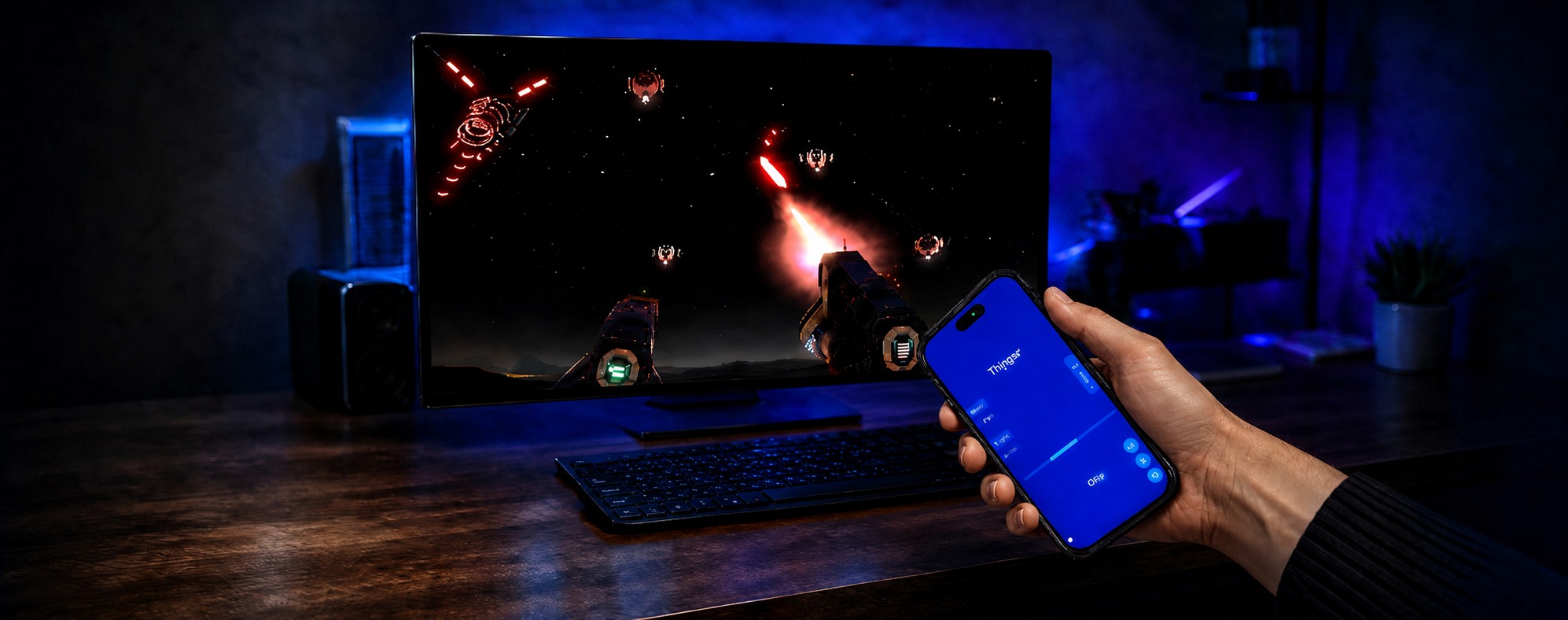
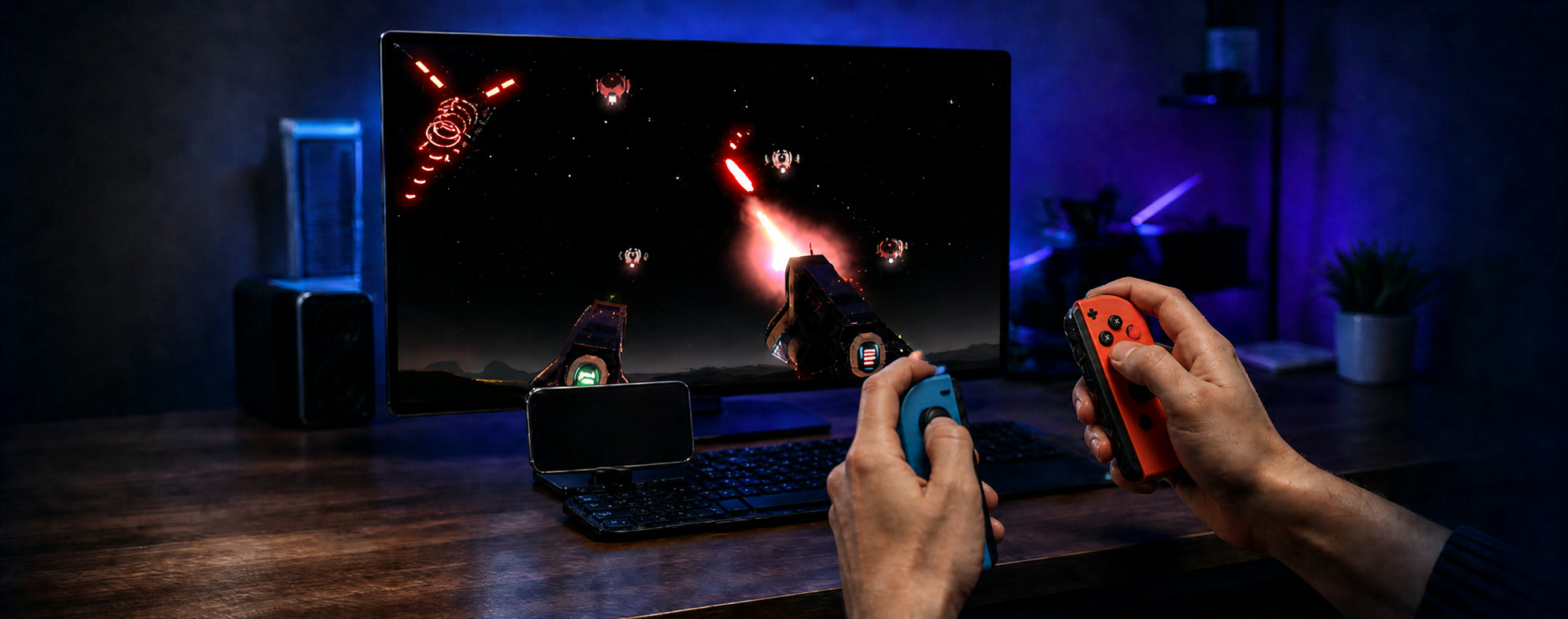
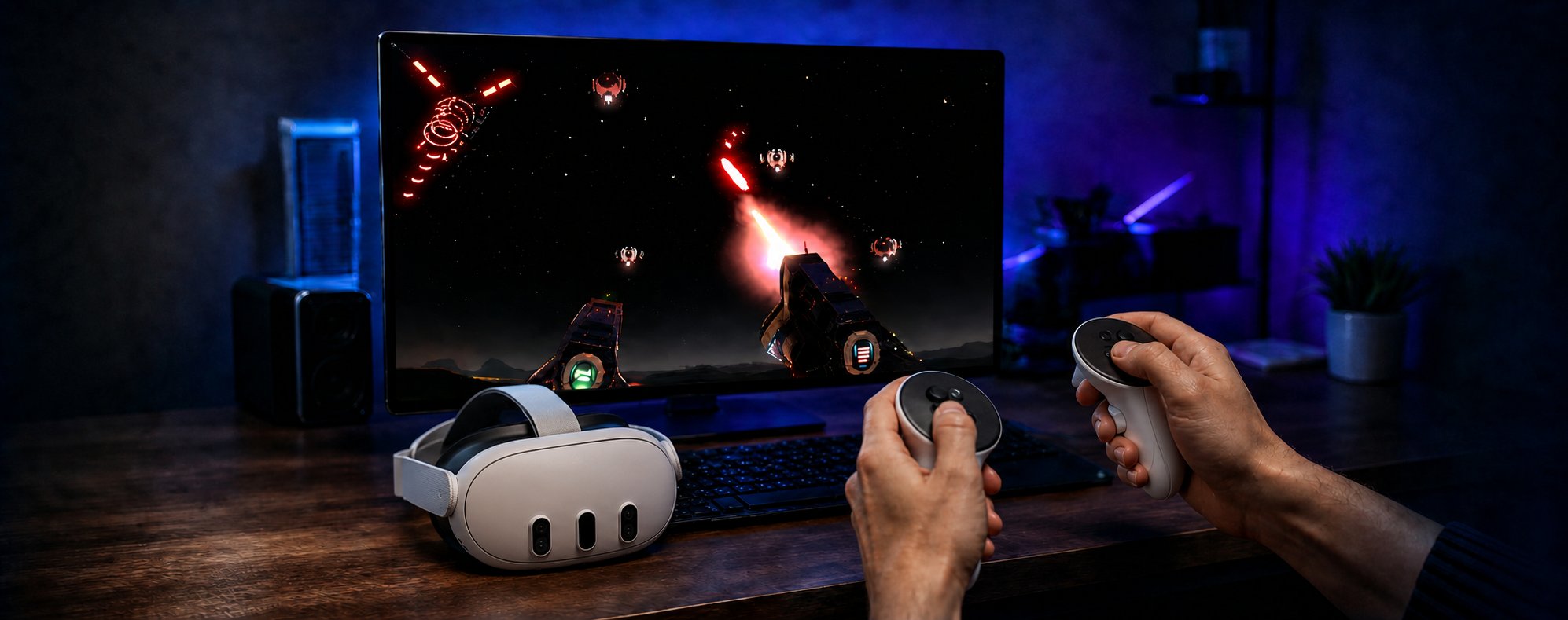
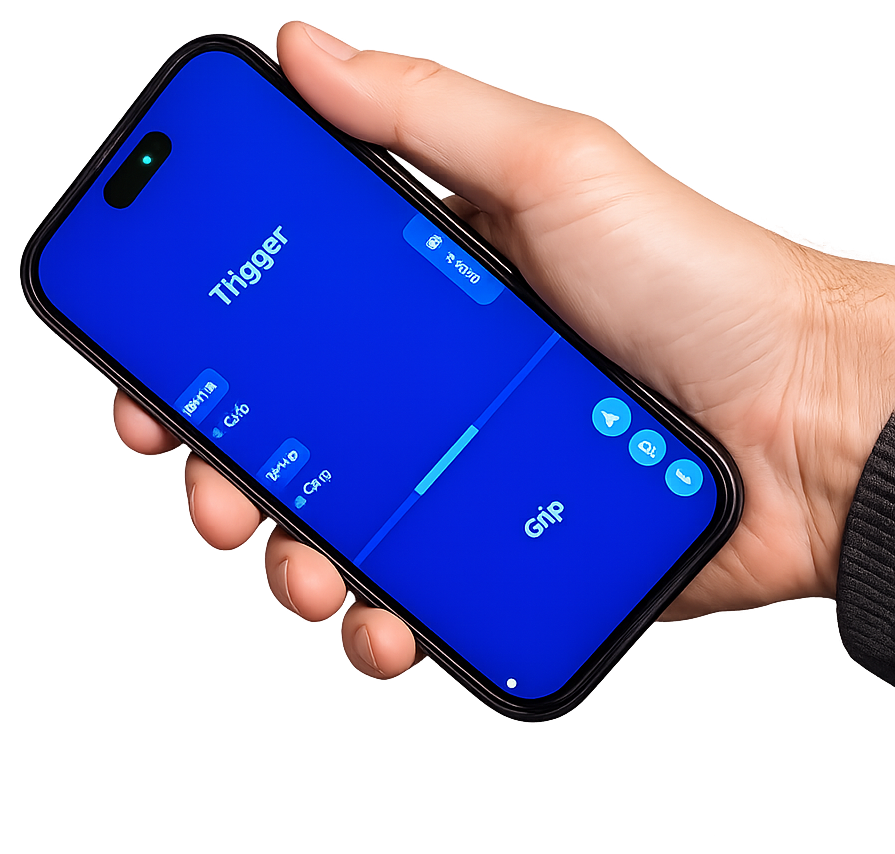
Plug your phone into your PC, grip it, and hold Volume‑Down to calibrate — PortalVR Motion then tracks it in full 6DoF. The phone becomes the controller, with an on‑screen trigger, grip, and buttons. Works on Android and iOS. PortalVR Motion uses your iPhone's FaceID camera to track Joy-Con controllers in 3D — no base stations, no extra gear. Plug a Quest or PICO into your PC — or use paired Index controllers or Vive wands — and PortalVR Motion pipes the native tracked controllers straight into SteamVR.

Watch the full walkthrough Smartphone · Joy-Cons · VR · Settings
A hand holds a smartphone showing PortalVR Motion's on-screen controller in front of a desktop monitor running a SteamVR space shooter in a dimly lit room. Two hands grip blue and orange Joy-Con 2 controllers; an iPhone on a small stand watches them while a desktop monitor displays a SteamVR space shooter. Hands holding Quest VR controllers in front of a desktop monitor running a SteamVR space combat game; the Quest headset rests on the desk in front of the monitor.
Plug in via USB
Connect your phone to your PC with a USB cable.
Grip & calibrate
Grip your phone and press and hold Volume‑Down to calibrate 6DoF tracking.
Launch any SteamVR game
Your phone shows up as a tracked controller. Play.
Dock your iPhone
Mount it so the FaceID camera can see your hands.
Pair your Joy-Cons
Bluetooth connect in seconds.
Launch any SteamVR game
Jump into thousands of VR experiences instantly.
Plug in your headset
Connect a Quest or PICO over USB, or use paired Index controllers or Vive wands.
Wake your VR controllers
Optical or Lighthouse tracking handles the rest.
Launch any SteamVR game
Same SteamVR titles, no extra gear required.
What you need

Three ways to play. Pick yours.

Motion runs on hardware you probably already own. Easiest of all: just your phone — now a fully tracked 6DoF controller. Prefer Joy-Cons or VR controllers? Those work too.

Good Fully tracked

Smartphone

Your phone tracks itself in full 6DoF and becomes the controller — held in a grip, with a trigger, grip, and buttons on the screen. Android or iOS.

  • Any modern Android phone or iPhone
  • A Windows PC that can already run SteamVR
  • That's it, just plug in over USB
Better Dual handed

iPhone + Joy-Con

Your iPhone's FaceID camera tracks the Joy-Cons — and your hands — in 6 DoF, so full finger articulation comes through. No base stations, no headset.

  • Any iPhone with FaceID (front-facing depth camera)
  • A pair of Joy-Con 1 or Joy-Con 2 controllers
  • A Windows PC + an iPhone stand
Best Highest precision

VR Controllers

Use a VR headset's native tracked controllers as the tracking source — Quest or PICO over USB, or paired Index controllers or Vive wands.

  • A Quest or PICO headset, Index controllers or Vive wands
  • Quest / PICO: developer mode + USB to your PC
  • A Windows PC that can already run SteamVR
No controllers? No problem.

Or, start with mouse & keyboard.

A novel keyboard & mouse scheme drives virtual controllers from your desk.

True 3D

Built for the new wave of 3D.

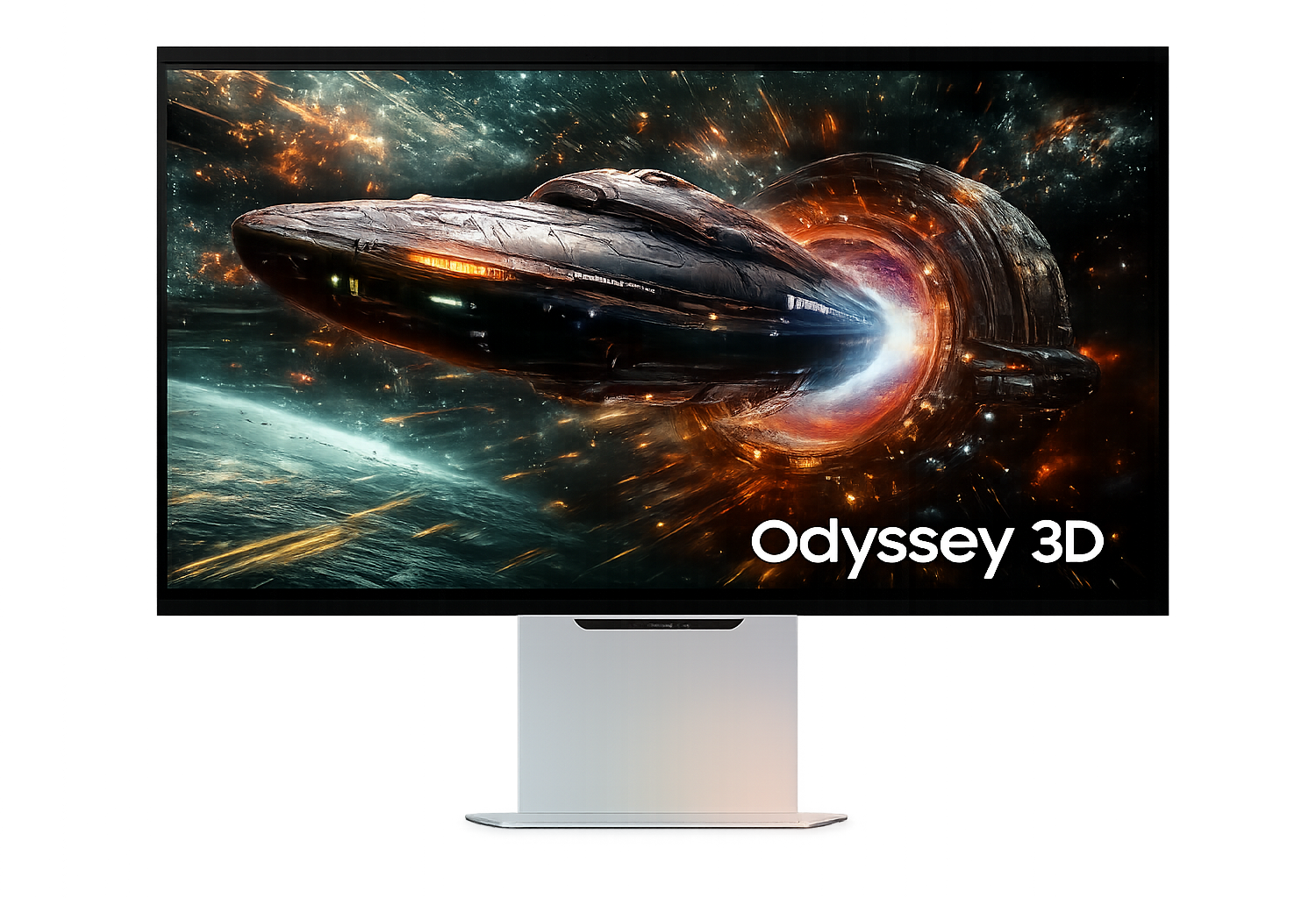
Motion renders genuine stereoscopic depth — so the latest glasses-free 3D monitors and AR glasses show every SteamVR title in real, eye-popping 3D.

Samsung Odyssey 3D glasses-free 3D gaming monitor displaying a spaceship in stereoscopic depth.
Glasses-free 3D monitor

Samsung Odyssey 3D

Sit at a Samsung Odyssey 3D and get true stereoscopic depth right on the desk — eye-tracked, with no glasses and no headset.

New
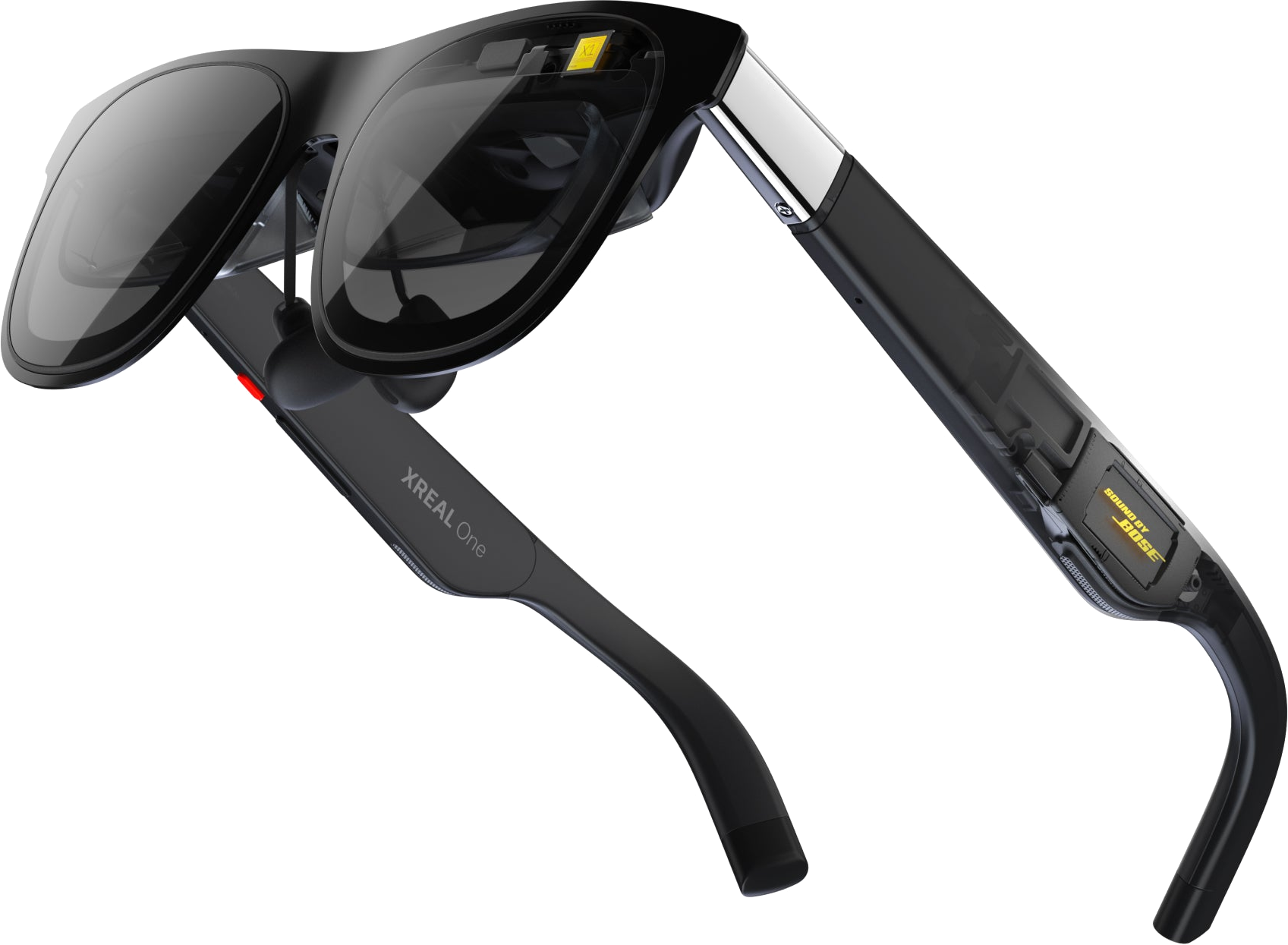
XREAL One AR glasses, a lightweight pair of display glasses that render a large floating 3D screen.
AR glasses

XREAL & VITURE glasses

Wear a pair of XREAL or VITURE AR glasses for a giant floating screen with full stereoscopic depth. Plug in over USB-C and play in 3D anywhere.

SteamVR · 6,000+ titles

Every SteamVR title
now in Motion

Motion registers as a SteamVR runtime, so any title that runs in SteamVR sees standard tracked controllers and launches normally — from Beat Saber and Half-Life: Alyx to VRChat, Gravity Sketch, and the long tail of indie experiments.

No per-game patching Standard tracked controllers Same launchers, same saves

Introducing Camera Drag

Press and hold the shoulder button on your Joy-Con and the in-game camera locks to its motion.

Your hand now spins a virtual 3D trackball that lets you use any VR content seamlessly.

The library · 6,000+ titles

6,000+ apps and games now in Motion

From action and rhythm to creative tools and sketchpads — Motion plugs into SteamVR, so anything that runs there runs here.

We're still exploring which titles work best — Join the Discord to help us find the gems.

Try before you buy

Free to download. Free to try.

Take Motion for a spin in shorter play sessions before deciding — no payment, no signup, no spam. Pick a license after you've found the fun.

What is PortalVR Motion?
PortalVR Motion is a SteamVR addon that brings natural, Wii-style motion controls to thousands of VR games and apps on SteamVR — no headset, no base stations. The easiest way to play is with the phone already in your pocket: it tracks itself in full 6 DoF and becomes the controller, on Android or iOS. You can also use Joy-Cons (tracked by an iPhone's camera) or a VR headset's controllers. Play at your desk on the screen you already have — or in true stereoscopic 3D on AR glasses or a 3D monitor.
How does the smartphone controller work?
Plug your phone into your PC over USB, hold it in a grip, and press and hold Volume‑Down to calibrate. From there your phone tracks itself in full 6 DoF and appears in SteamVR as a tracked motion controller, with an on-screen trigger, grip, and face buttons. It works on both Android and iOS, and needs no Joy-Cons, no stand, and no headset — just the phone you already carry. Re-calibrate any time by holding Volume‑Down so the controller's forward direction lines up with your screen.
What hardware do I need?

At minimum, a Windows PC capable of running SteamVR and a phone. The simplest setup is just your phone — it tracks itself in full 6DoF and becomes the controller, on Android or iOS. Have Joy-Cons? Use an iPhone on a stand facing you plus a pair of Joy-Con controllers. Either way: no headset, no base stations, no extra trackers. For true stereoscopic 3D, wear XREAL or VITURE AR glasses, or use a glasses-free 3D monitor like the Samsung Odyssey 3D.

A few accessories we recommend:

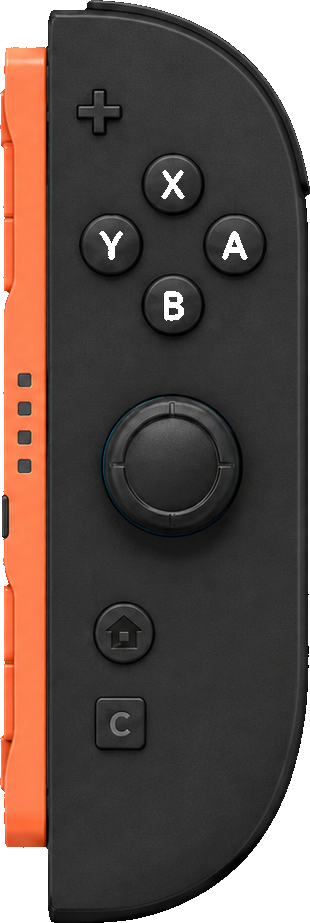
Don't have any Joy-Cons yet? Grab a pair of Joy-Con 2 controllers on Amazon.

Motion also supports using Quest, PICO, Index, or Vive controllers as a tracking source — extremely high precision via the headset's onboard optical tracking (Quest / PICO) or Lighthouse base stations (Index / Vive). Quest or PICO need developer mode and a USB connection to your PC; Index controllers and Vive wands work as-is.

How do I get the best Joy-Con tracking?

The single biggest tip: place your iPhone directly in front of you, not off to one side. The depth camera tracks best when it's facing you head-on. Next, make sure your hands are well lit — Motion locates your hands first and uses their pose to estimate where the controllers are, so dim or backlit hands hurt overall tracking. Drop the phone on a stand near the front edge of your desk so nothing on the desk blocks the camera, and angle it so the lens looks toward your body and hands rather than tilted up at your face.

From there, distance is the dial — for titles that need fine finger control, keep your hands closer to the camera so Motion can track each finger; for wider arm-motion titles like Beat Saber, scoot back so the camera can see your full upper body. If you have an iPhone Pro, switch to the rear LiDAR camera for those wider, full-body titles — it gives noticeably better depth at longer distances than the front FaceID camera.

Use Joy-Con 2 if you can — the built-in magnetometer keeps rotational tracking steadier.

If you want the highest tracking fidelity available, plug in a Quest or PICO headset and use its controllers as the tracking source — the headset's onboard cameras provide excellent optical precision. Put it in developer mode and connect it to your PC over USB. Index controllers and Vive wands also work as a tracking source via Lighthouse base stations.

Should I use Joy-Con 1 or Joy-Con 2?
Joy-Con 2 is recommended. It has a built-in magnetometer that measures direction relative to Earth's magnetic field, which gives noticeably steadier rotational tracking. Joy-Con 1 still works great — it can just see drift in its forward heading bit more during rapid motions.
One of my Joy-Con 1 controllers is laggy
Some PC Bluetooth radios queue packets in a way that introduces noticeable lag with Joy-Con 1. Joy-Con 2 doesn't trigger this behavior. To fix it, either swap to Joy-Con 2, or grab a small USB Bluetooth dongle off Amazon — that bypasses the built-in radio and resolves the queueing issue.
Is Android supported?
Yes. Your Android phone works as a fully 6 DoF-tracked controller, exactly like an iPhone — plug it in over USB and play. (The camera method, where a phone's depth camera tracks Joy-Cons, requires an iPhone with a FaceID depth camera.)
Which AR glasses and 3D displays are supported?
For true stereoscopic 3D, Motion supports XREAL and VITURE AR glasses — a big virtual screen with full depth on glasses you wear, connected over USB-C; we read the glasses' built-in IMU for head tracking. Glasses-free 3D monitors like the Samsung Odyssey 3D are fully supported too. And any display that supports side-by-side (SBS) 3D can be used — just activate SBS mode.
Can I really play any SteamVR game?
Motion registers as a SteamVR runtime, so any title that runs in SteamVR sees standard tracked controllers and launches normally. The catch is that some titles ask for extremely precise fast motion or sharp full-body movement (like spinning around to face an enemy behind you) — those can be awkward to translate onto a 2D screen. That said: we've managed to beat a few Hard levels in Beat Saber through Motion, so it's not too bad.
Does this support hand tracking?
When you play with Joy-Cons (tracked by the iPhone camera) or Index controllers, your fingers are tracked in addition to the controller — full finger articulation comes through, as you can see in the VRChat and Half-Life: Alyx clips above, which is great for expression, gestures, and natural object interaction. Additional hand-tracking support for other setups is coming soon.
Does this support face tracking?
Yes — your webcam tracks your head in real time, which adds 3D parallax to the view when you lean side-to-side or forward, plus the ability to dodge obstacles and duck under enemy fire during gameplay.
How does Camera Drag work?
Hold the shoulder button — or one of the SL/SR side buttons — and the in-game camera locks onto your controller's motion. Your hand is now spinning a virtual 3D trackball, dragging the view in 6 DoF; reach forward and the camera reaches forward with you, which makes picking up far-away objects feel natural. Release to anchor the view.
Do I need a powerful PC?
If your PC can already run a given SteamVR title, it can run it through Motion. Tracking happens on your phone (or the iPhone camera) — your PC just sees tracked controllers.
Is there a free trial?
Yes — you can download PortalVR Motion and try it out in short play sessions for free. The Subscription and Commercial-Use plans both include a 7-day trial; Lifetime is a one-time purchase for personal use — see Pricing.
Can I use it for streaming and content?
Yes. PortalVR Motion brings motion controls to SteamVR content on a flat screen, which makes it a great fit for streaming, live demos, marketing shoots, trade-show kiosks, and anywhere a head-mounted display is awkward. Camera Drag also makes framing shots far easier than steering by stick.
What about latency?
Latency feels great because we've pulled out all the stops. Tracking data streams over USB from your phone to the PC (no Wi-Fi hop), the phone is configured for maximum tracking speed and precision, and IMU readings are fused with the tracking data in real time — so even between camera frames you get near-instant responsiveness from your wrists.
What's the difference between PortalVR Motion and PortalVR Cast?
Motion is a SteamVR add-on that lets you run any SteamVR content in 2D with motion controls. Cast takes a different angle — it streams VR content directly into the browser from a Quest, PICO, or Galaxy XR headset and lets you play in a similar way, but is limited to sideloaded or pushed APKs.