Now with Galaxy XR · Quest + PICO · No install

Cast your Quest, PICO, or Galaxy XR to any browser.

Share the headset feed live in a Chrome tab, capture sessions to MP4 — or take over the controls and use VR without having to wear the headset. Same tool, same tab.

Cast it. Use it. Record it. From any Chrome tab.

Quest · PICO · Galaxy XR Wired or wireless Zero install · Works offline
Quest · PICO · Galaxy XR · in a browser tab Your headset does the work. Your screen does the showing.

Use the headset — without wearing it.

Cast isn't just a screen mirror. Pair the existing Quest, PICO, or Galaxy XR controllers, drag the in-game camera around in 6 DoF, and actually use the VR content from the browser — while the headset itself sits powered on, off your face.

Headset on the desk · not on you
Two ways to use it

Watch what's happening — or take over.

Cast does both: a frictionless screen mirror for everyone to follow along, and a full remote console with controller pairing and 6 DoF camera drag — so VR apps run on a normal screen, while the headset stays sitting on the desk.

Mode A · Watch For groups & demos

Cast & share what the headset sees

Mirror the headset feed to any browser. Trade-show booths, training sessions, parents watching kids — anyone with a tab can see what's happening live.

  • Full headset view mirrored to any Chrome tab
  • Works wired or wireless on the same LAN
  • Record straight to MP4 — video and audio
  • Caches once, runs offline forever
Mode B · Play Hands-on, headset off

Use VR — from the browser

Finally, a way to use VR without putting the headset on. PortalVR Cast pairs with the existing Quest, PICO, or Galaxy XR controllers so you can grab, point, and aim normally — and adds camera drag for moving the in-game view in 6 DoF, all from the Chrome tab.

  • Launch any installed app right from the tab
  • Full controller input — buttons, sticks, triggers
  • Camera drag — pan, pitch, and walk in 6 DoF
  • Works with any sideloaded or pushed APK
How it works

Three steps. No install.

Cast runs entirely in your browser — no ADB, no drivers, no app to install. The headset stays where it is; the browser does the rest.

A Quest headset sitting on a desk while a laptop browser displays the cast feed.
Connect your headset
Quest or Galaxy XR over USB, or any headset wireless on the same LAN. Headset in developer mode.
Grant the device permission once — that's the install. Caches for offline use after the first visit.
Cast, play, record
Mirror the view, launch apps, hand someone the controllers from the browser, and capture the whole session straight to MP4.
Where Cast earns its keep

Built for the way you actually use VR.

Headset on for the experience, headset off for everything else — demos, dev work, bug reports, group play, marketing capture. Cast is the layer between.

A person interacting with VR content on a regular screen while a headset sits unworn nearby.
Headset-free play

Anyone can play. Nobody has to wear it.

Launch a VR app and hand the controllers to someone at a laptop. Camera drag lets them move the view in 6 DoF; full controller input means they're not just watching — they're playing. Parents can follow kids, friends can take turns, and people who can't tolerate a head-mount get the same experience.

Audience Anyone with Chrome
Interaction Full controller + camera drag
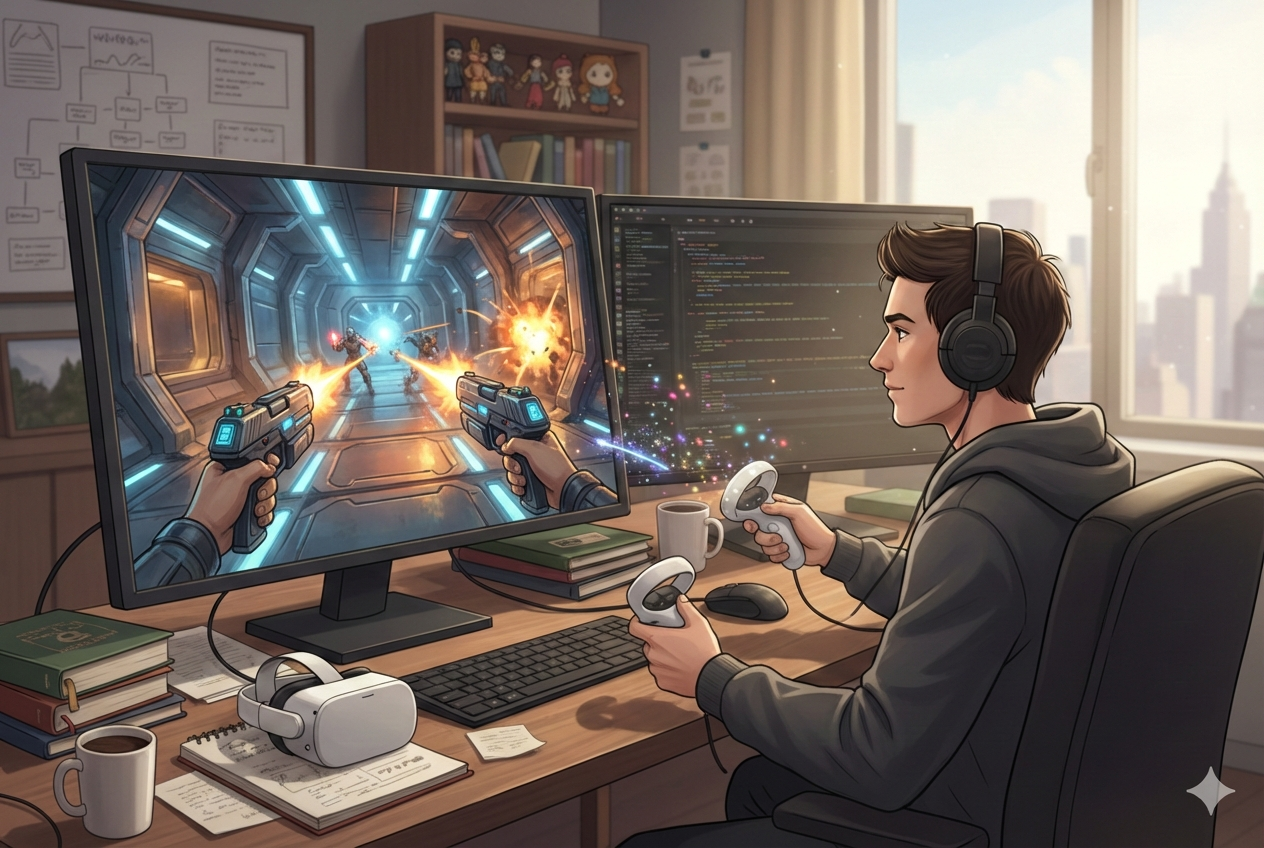
A developer testing a VR build on a desk monitor.
Developer testing

Test builds without putting on the headset.

Real-device testing usually means putting the headset on, aligning controllers, running a build, taking it off, fixing something, doing it all again. Cast turns that into a desk workflow — camera drag for 6 DoF navigation, controller input for interaction, and a tab that never disconnects.

Typical time saved 15–30 min/day per dev
Context switches No headset on/off cycles
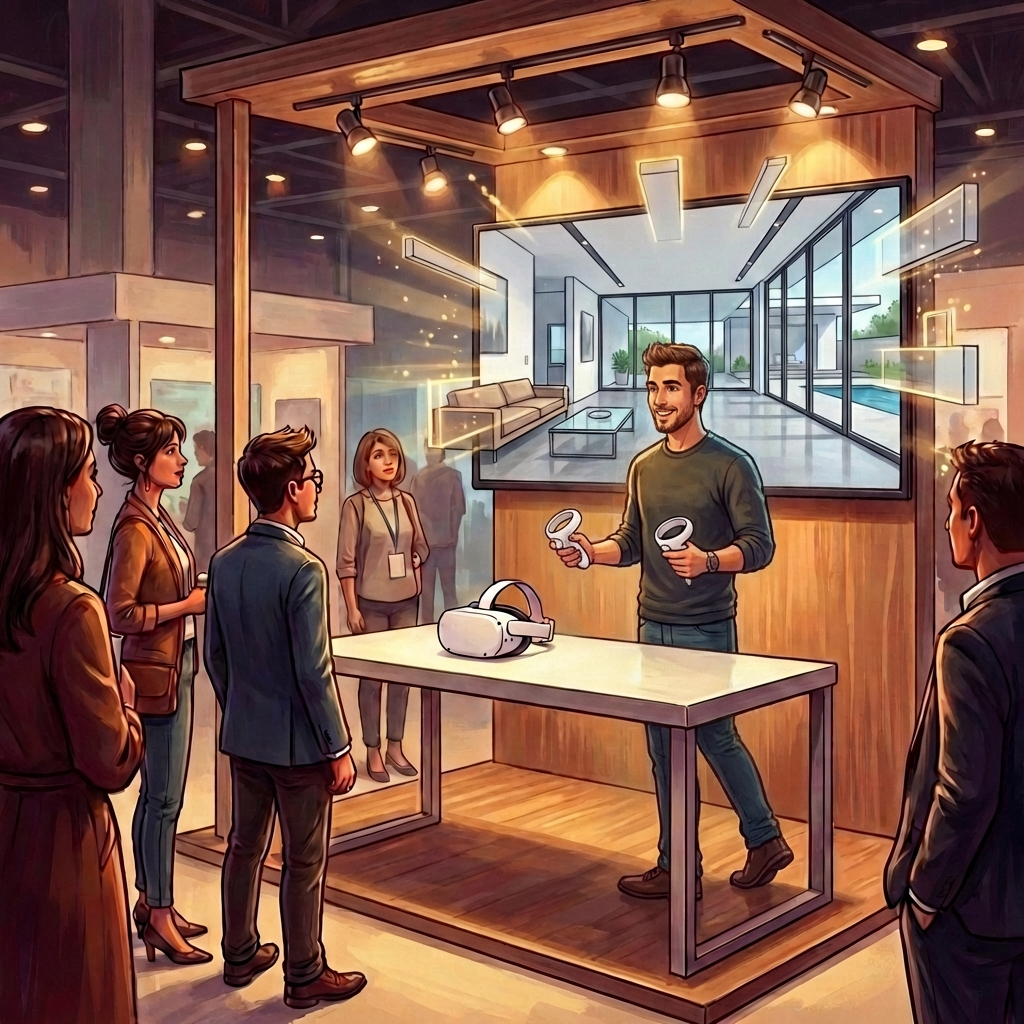
A demo running at a trade-show booth with VR content shown on a screen.
Sales & demos

Run a demo on any laptop in under a minute.

A demo machine becomes any Chrome machine. No ADB, no IT ticket, no proprietary mirroring app. Plug in the headset, open a browser, the experience is live on the projector. Works offline too — trade-show floors and client sites with bad WiFi aren't a problem.

Setup Under 1 minute
IT dependencies Zero — just Chrome
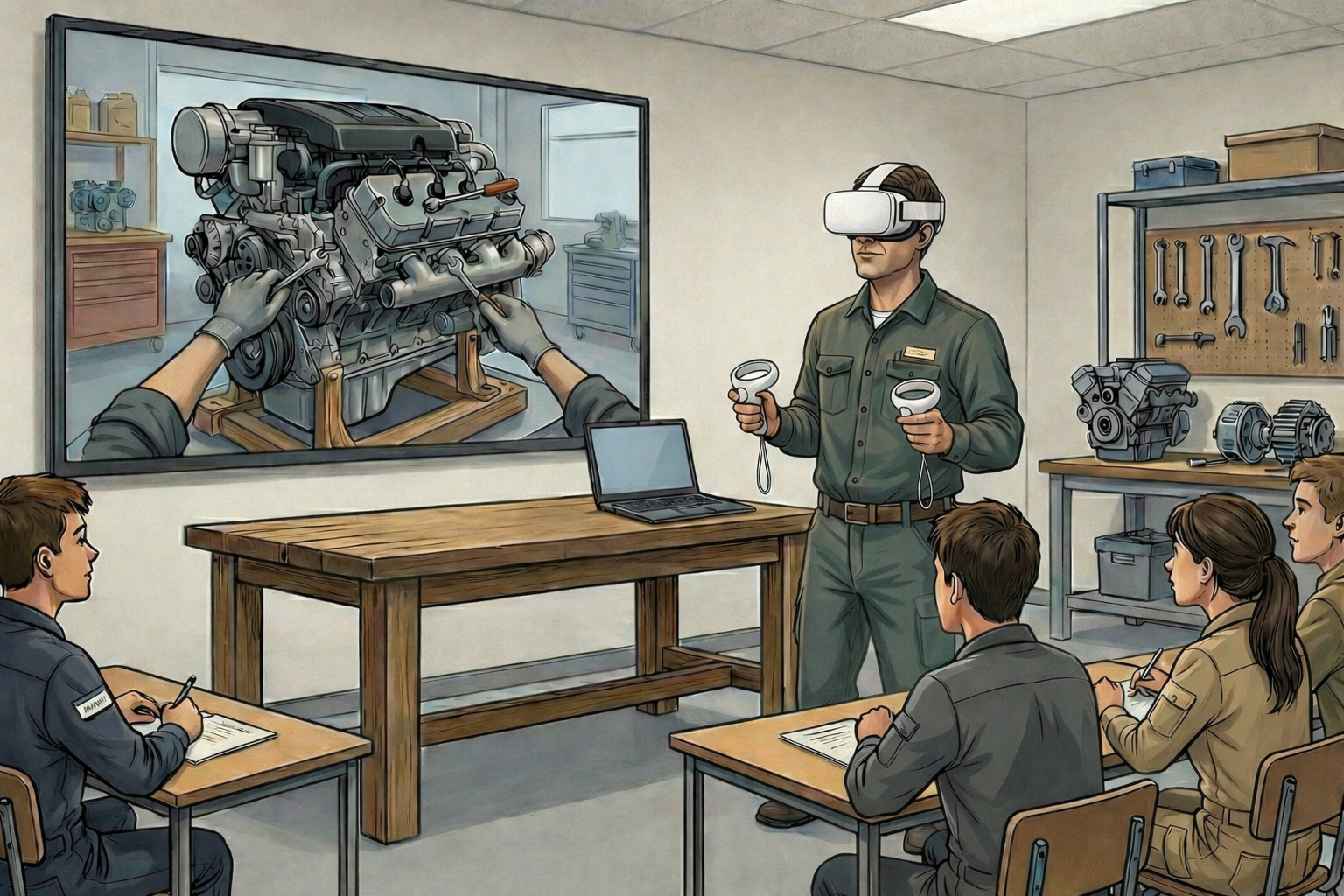
Capturing VR footage for marketing content.
Recording & capture

Hit record. Get an MP4. That's it.

A recording button captures the headset feed with audio straight to an MP4 file — no OBS, no screen recorder, no extra software. Camera drag lets you frame cinematic shots from the browser instead of steering by stick. Great for QA bug reports, marketing clips, and archiving live sessions.

Output MP4 with audio
Length Unlimited
Stacks up

How Cast compares.

PortalVR Cast Built-in Casting ADB Mirroring
Quest, PICO + Galaxy XR support Yes Varies by platform Quest only
Zero install (browser only) Yes Limited Requires ADB + VLC
Works offline Yes Native-only Yes
Wired + wireless Both Limited Wired only
Interactive (controller input) Yes View only View only
Play without wearing the headset Yes No No
Built-in recording to MP4 Yes Varies by platform No
Try before you buy

Open the tab. Use VR in a minute.

No signup, no install, no payment up front. Connect a Quest, PICO, or Galaxy XR in developer mode, open Chrome, and you're casting — and, if you want, using VR without wearing the headset — in under a minute.

What is PortalVR Cast?
PortalVR Cast streams your VR headset to a Chrome browser tab. You can mirror what's happening, launch apps, send full controller input, navigate in 6 DoF with camera drag, and record sessions straight to MP4 — all without installing software, and without anyone wearing the headset. It works with Meta Quest 2 & 3, PICO headsets, and the Samsung Galaxy XR (Android XR).
Wait — I can play VR without wearing the headset?

Yes — that's the part most people don't realize Cast does. Beyond mirroring, the browser becomes a full remote console for the headset. You can launch a VR app, send button and stick input on the controllers, and steer the in-game camera in six degrees of freedom (pan, pitch, walk) using camera drag. The headset itself stays sitting on the desk, powered on but unworn.

It's a great fit for parents watching kids, people who can't wear a head-mount, group play where everyone takes turns, and devs who want to iterate on builds without putting the headset on every time.

Which headsets are supported?
Meta Quest 2 and 3, PICO headsets, and the Samsung Galaxy XR (Android XR). Connects via USB or wirelessly over your local network.
Do I need to install anything?
No. Cast runs entirely in your browser. There's nothing to install, no ADB to configure, no drivers. Just connect a headset (in developer mode) and open a tab. It even works offline after you visit once.
How does wireless casting work?
Your headset and computer need to be on the same local network. Connect over USB first, then switch to WiFi mode from the Cast interface — no router configuration or port forwarding required.
Does it work offline?
Yes. After your first visit, a service worker caches everything Cast needs. You can use it at trade shows, client sites, or anywhere without internet. Wired USB connections don't touch the network at all.
Can I record sessions?
Yes. Cast has a built-in recording button that captures video and audio directly to an MP4 file. No OBS or external screen recorder needed. Recording length is unlimited.
Does it work with any app?
Cast works with any VR application built with a recent Meta, PICO, or Android XR SDK — games, experiences, custom builds. No per-app code changes required. The interactive mode (launching apps + controller input + camera drag) works with sideloaded or pushed APKs.
What browsers are supported?
Chrome or Edge on Mac, Windows, Linux, and ChromeOS. For USB connections, the browser needs WebUSB support. Firefox and Safari are not supported.
The video looks laggy — how do I fix it?
Open the settings panel and try lowering the video bitrate, resolution, or frame rate. Reducing any of these eases the load on the connection and the headset's encoder. On medium settings, games run great even on a Chromebook.
What's the difference between PortalVR Cast and PortalVR Motion?
Cast streams a Quest, PICO, or Galaxy XR headset into a browser and lets you mirror or take over the controls — it's headset-side, limited to sideloaded or pushed APKs. Motion is a SteamVR runtime for PC: it lets you run any SteamVR title in 2D using Joy-Cons or VR controllers as the tracking source — no headset needed at all there. Two different angles on the same idea: using VR without having to wear it.